> ## Documentation Index
> Fetch the complete documentation index at: https://docs.assignbots.com/llms.txt
> Use this file to discover all available pages before exploring further.
# Creating a bot
# 🤖 Creating a Bot
There are two ways to create a bot in Assignbots — from scratch or using a ready-made template.
***
### ➕ Starting a New Bot
From the **Dashboard**, click **New Assignbot** to open creation options:
* **From Scratch**: Start fresh and fully customize your bot.
* **From Template**: Choose from prebuilt bots designed for education, like:
* **Project-Building Assistant**
* **Professional Learning Designer**
* **Content Generator**
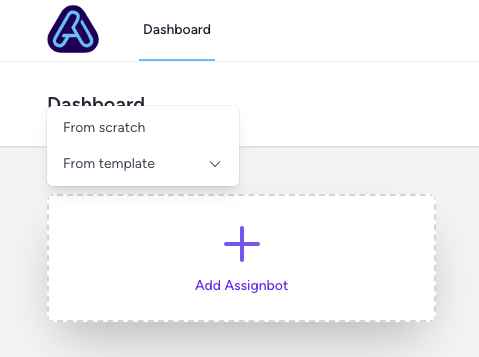 Selecting a template will prefill your bot with role, tone, and visual presets you can modify.
***
### ✏️ Naming Your Bot
You’ll be prompted to name your bot. Give it something relevant — like *Research Helper* or *Ethics Quiz Bot*.
> Tip: You can rename the bot later by clicking its title in the top dashboard breadcrumb.
***
### 🎯 What Happens Next?
After naming your bot, you’ll land in the **Bot Editor**, where you can:
* Set up the bot’s purpose and tone
* Add custom knowledge and activity scripts
* Customize appearance and messages
We’ll cover all of that in the [Bot Editor section](../bot-editor/ai-setup.mdx).
***
Templates are a great way to quickly spin up bots for common classroom needs. You can tweak every detail after choosing one.
Selecting a template will prefill your bot with role, tone, and visual presets you can modify.
***
### ✏️ Naming Your Bot
You’ll be prompted to name your bot. Give it something relevant — like *Research Helper* or *Ethics Quiz Bot*.
> Tip: You can rename the bot later by clicking its title in the top dashboard breadcrumb.
***
### 🎯 What Happens Next?
After naming your bot, you’ll land in the **Bot Editor**, where you can:
* Set up the bot’s purpose and tone
* Add custom knowledge and activity scripts
* Customize appearance and messages
We’ll cover all of that in the [Bot Editor section](../bot-editor/ai-setup.mdx).
***
Templates are a great way to quickly spin up bots for common classroom needs. You can tweak every detail after choosing one.