> ## Documentation Index
> Fetch the complete documentation index at: https://docs.assignbots.com/llms.txt
> Use this file to discover all available pages before exploring further.
# Switching teams
# 🔄 Switching Teams
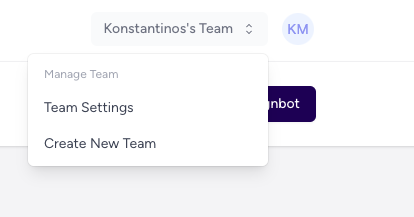
If you're a member of multiple teams in Assignbots, you can easily switch between them using the **team selector** in the top-right corner.
***
### 🧭 How to Switch Teams
1. Click your **current team name** in the top navigation bar
2. A dropdown will appear listing all teams you're part of
3. Click on a team to instantly switch into its workspace
 When you switch teams:
* Your dashboard updates to show only that team's bots
* You’ll only see analytics, chat logs, and bots for that team
***
### 📥 Accepting an Invite
If you’ve been invited to a team via email:
1. Open the invitation email and click **Join Team**
2. Log in (or create an account if needed)
3. You’ll be added to the team immediately
Your bots and data are private to your team. You can only access the workspaces you’ve been invited to.
Switching teams helps you keep roles and responsibilities organized when collaborating across departments or schools.
When you switch teams:
* Your dashboard updates to show only that team's bots
* You’ll only see analytics, chat logs, and bots for that team
***
### 📥 Accepting an Invite
If you’ve been invited to a team via email:
1. Open the invitation email and click **Join Team**
2. Log in (or create an account if needed)
3. You’ll be added to the team immediately
Your bots and data are private to your team. You can only access the workspaces you’ve been invited to.
Switching teams helps you keep roles and responsibilities organized when collaborating across departments or schools.