

👥 Creating a Team
Teams let you collaborate with colleagues by sharing access to bots — either as editors or viewers. Each team has its own isolated workspace.➕ Create a Team
To create a new team:- Open the team dropdown in the top right
- Click Create New Team
- Enter your team name
- Click Create
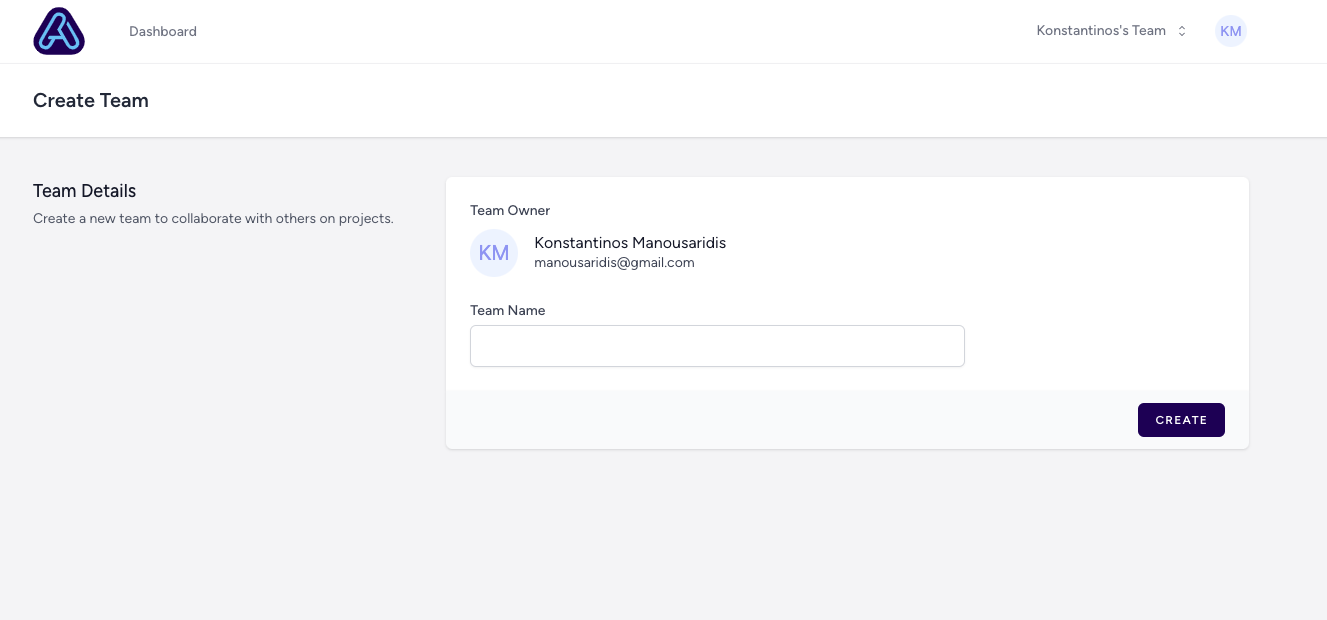 You will become the Team Owner and can start inviting others right away.
👥 Invite Team Members
Once your team is created:- Go to the dropdown > Team Settings
- In the Add Team Member section, enter the person’s email
- Choose a role:
- Administrator – full access and settings control
- Editor – can view, edit, and build bots
- Viewer – read-only access for analytics
- Click Add
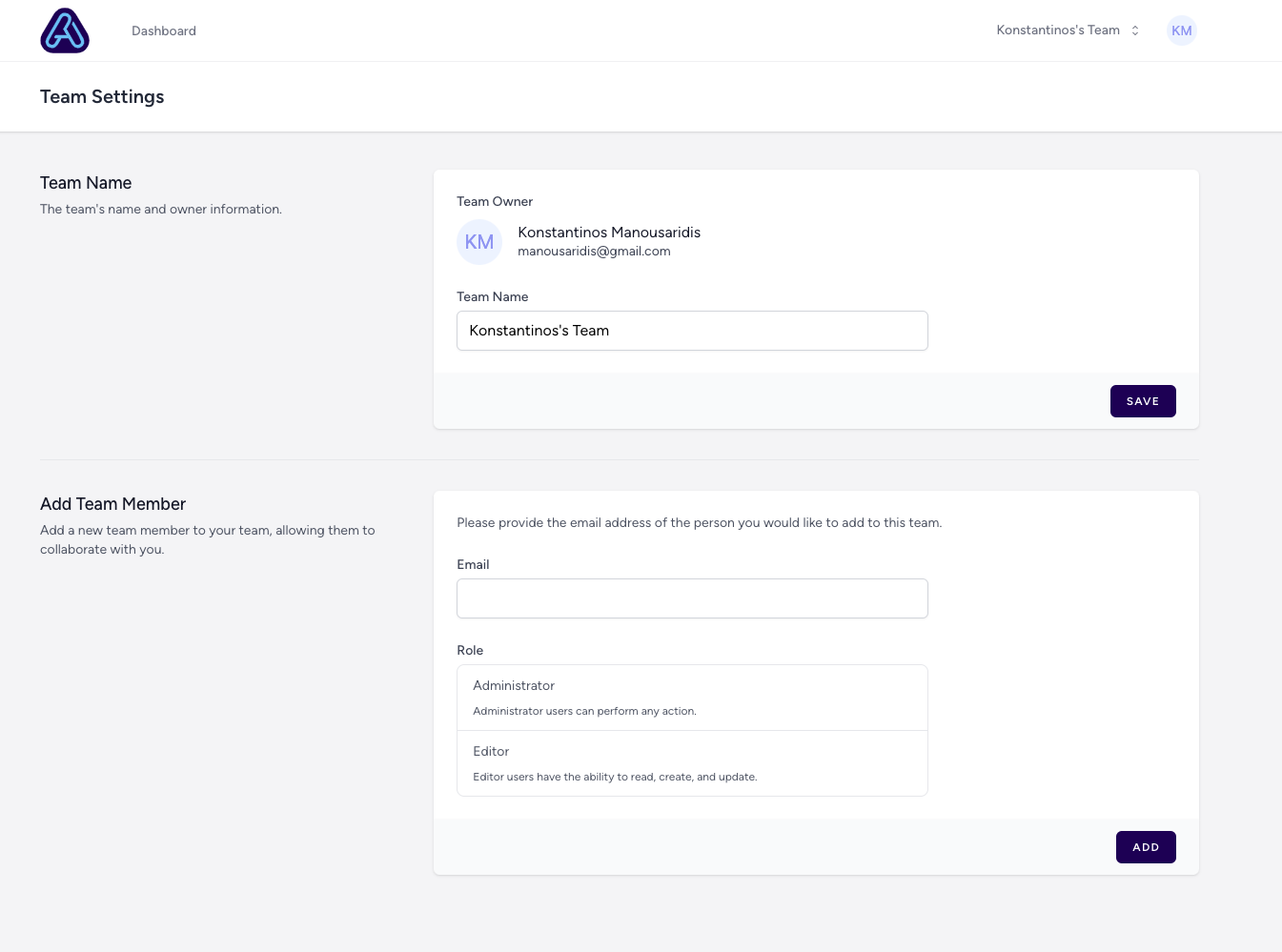
You can promote/demote or remove users at any time from the Team Settings.
🗑️ Delete a Team
Only the Team Owner can delete a team. At the bottom of Team Settings, click Delete Team. ⚠️ This will permanently erase all bots and data under that team. Be sure to back up anything important first.Use teams to keep workspaces separate across departments, classes, or institutions — while enabling collaboration with full control.