

🛠️ Managing Teams
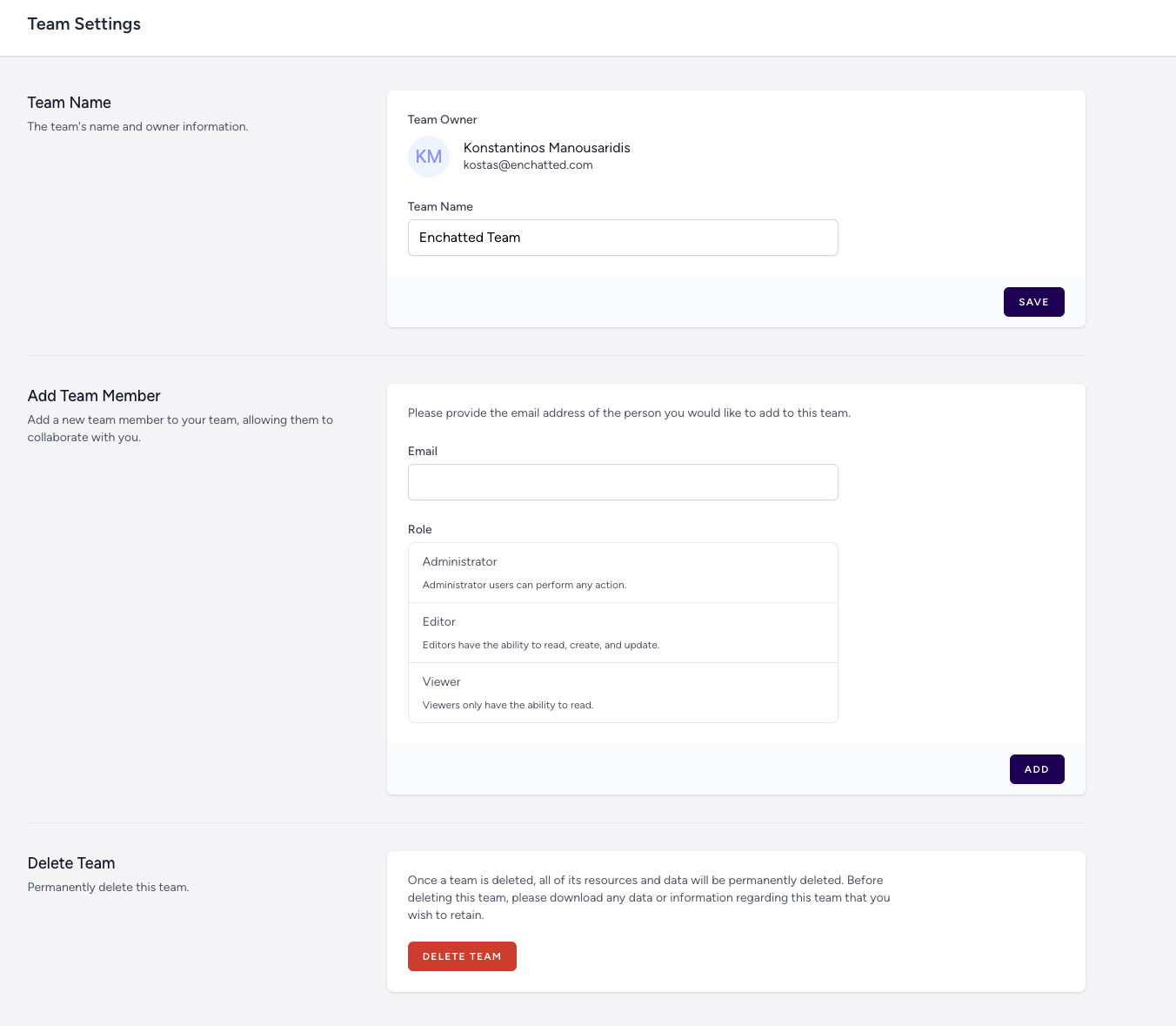
Once a team is created, team owners and administrators can manage its members and settings from the Team Settings page.🧾 Update Team Name
To change the team name:- Go to the team dropdown and select Team Settings
- Under Team Name, update the name field
- Click Save
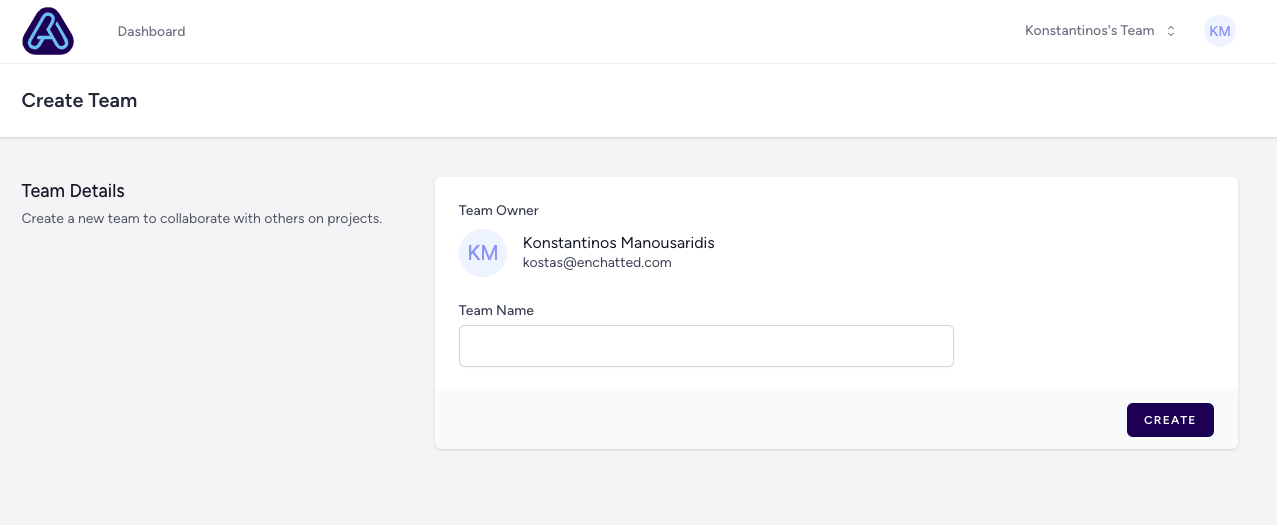
👥 Manage Members
In the Add Team Member section, you can invite more collaborators by email. When adding someone, choose a role:- Administrator: Full permissions, including adding/removing users and deleting the team
- Editor: Can create, update, and manage bots
- Viewer: Can only view analytics and published bot content
✉️ Inviting Members by Email
Invited users will receive an email like this: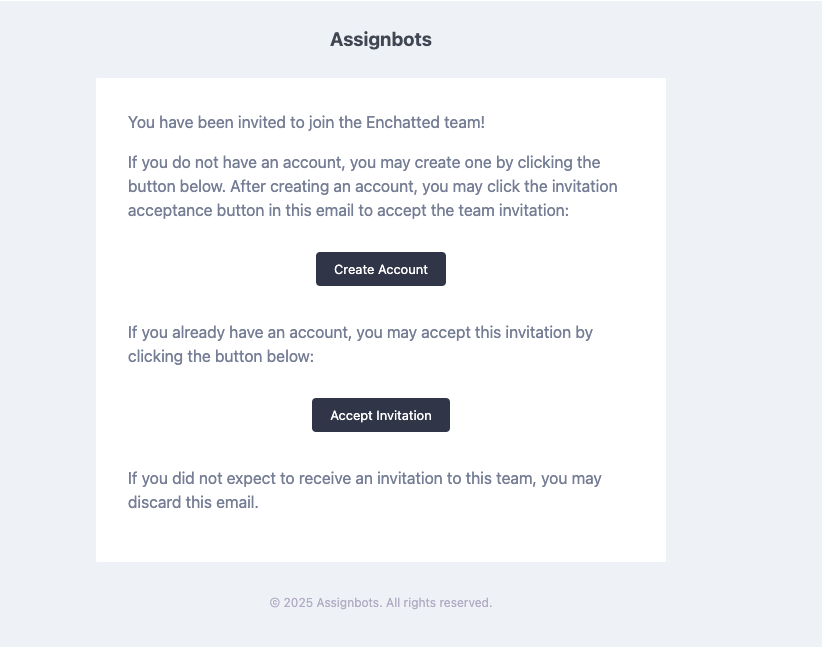 They can:
- Create an account if they don’t already have one
- Accept the invitation and join your team workspace
Each team workspace is completely separate. Members only see bots and conversations within the teams they’ve joined.
🗑️ Deleting a Team
If you’re the Team Owner, you can delete the team entirely from Team Settings. This will remove:- All bots associated with the team
- All members’ access
- All conversation analytics and stored data
With teams, you can scale your bot-building workflows across departments, teachers, or research groups — while keeping everything organized and secure.