
🧭 Dashboard Overview
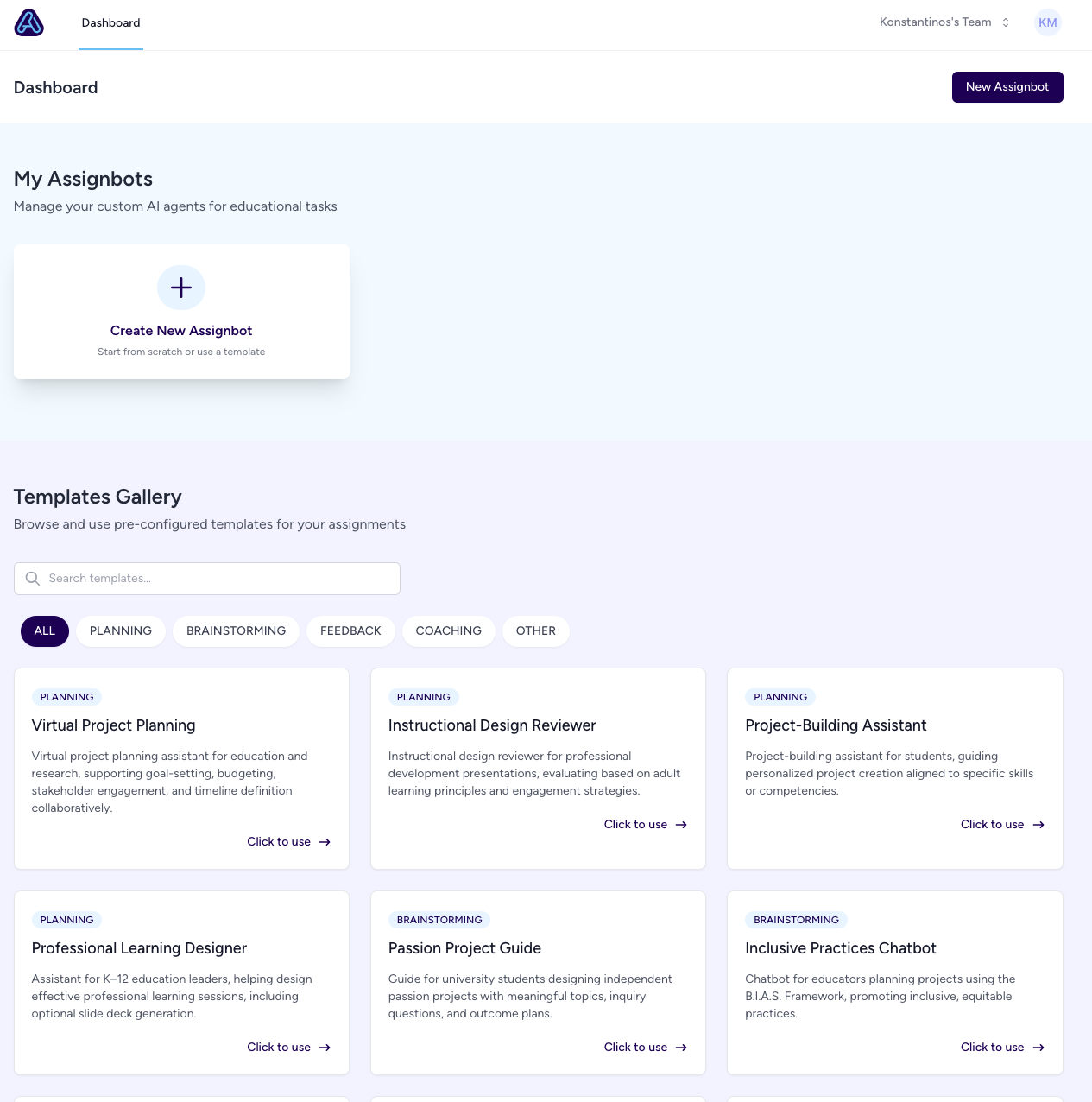
Once logged in, the Assignbots Dashboard becomes your personal command center — the hub for creating, editing, and managing your custom AI assistants. From the dashboard, you can:- ✨ Create a new bot using the New Assignbot button
- 🎨 Choose from a variety of ready-made templates in the Templates Gallery
- 👥 Switch between teams using the dropdown in the top-right
- 🔐 Access your profile, update settings, or delete your account
🎓 Templates Gallery
Scroll down on the dashboard to explore the Templates Gallery, where you’ll find a collection of preconfigured bots for common educational scenarios:- 🗂️ Filter templates by category — Planning, Brainstorming, Feedback, Coaching, and more
- 🔍 Search for templates by keyword
- ⚡ Click “Click to use” to launch a bot instantly from a template
- Virtual Project Planner – Helps students structure and plan their assignments
- Instructional Design Reviewer – Designed for educators refining lesson plans
- Inclusive Practices Chatbot – Promotes inclusive, equitable classroom strategies
📂 Working with Bots
Each Assignbot appears as a card on your dashboard:- Click a bot to open it in the editor
- View recent conversations or usage analytics
- Duplicate, rename, or delete a bot as needed
👥 Team Navigation
Switching teams? Use the top-right team dropdown to:- Create a new team
- Manage team settings
- Join a team if invited by a colleague
Your data is safe. Bots and settings are only visible to you or to users you explicitly share access with. All information is encrypted and securely stored on AWS infrastructure.